

This is the third article in my series on tools that come as part of the M365 suite. Forms is not a tool I hear many people talking about, but it strikes me there some good reasons why firms on a tight IT budget in particular, might want to investigate it further. In writing this article I’ve become aware of a couple of opportunities for me to use it in my business too!
For firms already using Outlook, Teams, SharePoint, and OneDrive, Microsoft Forms fits naturally into existing workflows and can significantly reduce email back-and-forth, incomplete information, and manual data handling.
This article explains what Microsoft Forms is, how it works, and how accounting firms can use it effectively in practice. I’ve written it with the help of Chat GPT.
What is Microsoft Forms?
Microsoft Forms is a web-based form and survey tool included in most Microsoft 365 Business and Enterprise subscriptions. It offers a low-friction way to collect structured information from clients, team members and others —securely, consistently, and directly into your Microsoft ecosystem.
It allows you to create:
- Forms (for data collection,)
- Surveys (for feedback)
- Quizzes (useful for training)
Responses are automatically captured and stored securely within Microsoft 365 and can be:
- Viewed live in Forms
- Exported to Excel
- Integrated with SharePoint, Teams, Power Automate, and Power BI
Importantly for accounting firms:
- No software needs to be installed by clients
- Forms work on desktop, tablet, and mobile
- External users (clients) can respond without a Microsoft account
Where do I find it?
Not sure if my M365 is much different to yours but when I use a browser to go into M365 at present Microsoft insists on presenting Co-Pilot and actually making it hard to get out of it and find anything else. For me they’ve gone too far with this but that is a topic for another day.
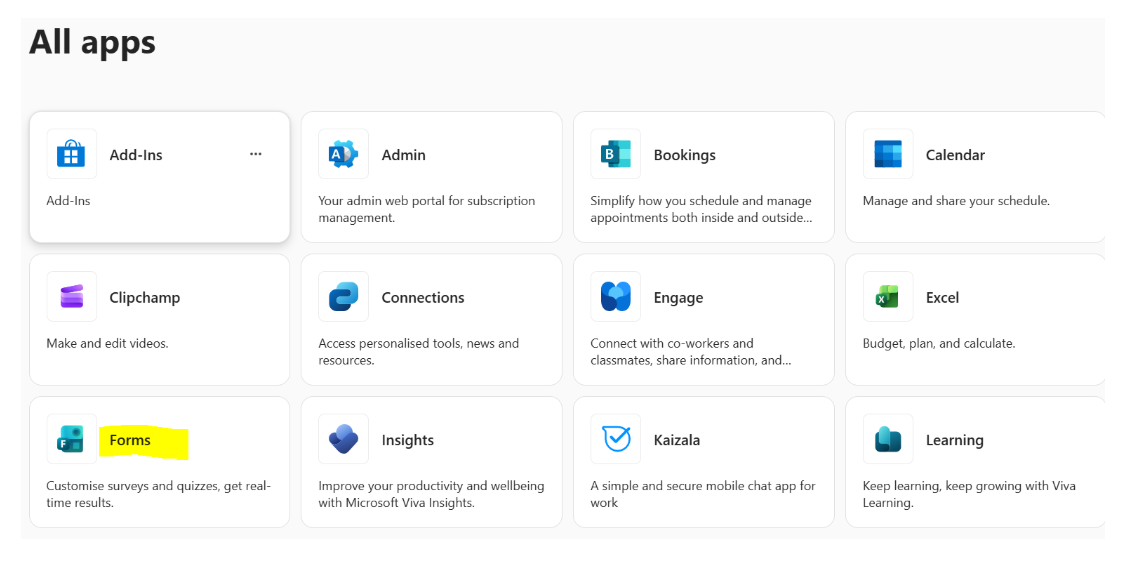
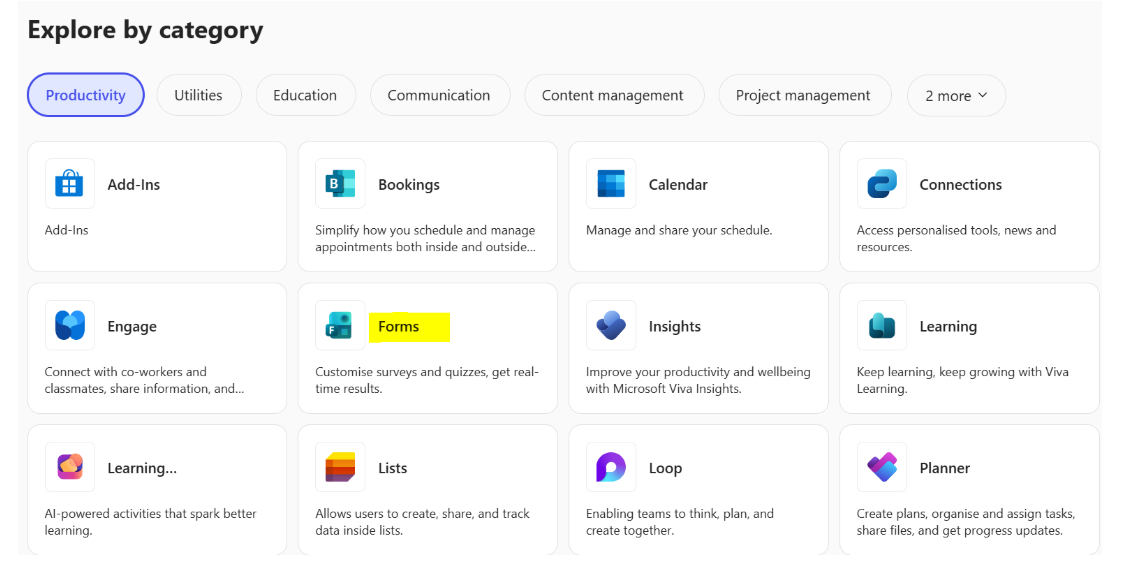
At some point you should be able to find the Apps page which groups apps in different ways. I found Forms by looking at the Explore By Category on the Apps homepage. You might also see the All apps grouping.
You could also go here: https://forms.office.com
Why Microsoft Forms works well for accounting firms
- Structured information beats emails
Accounting firms rely heavily on information provided by clients—yet emails often arrive incomplete, inconsistent, or late. Forms allow you to control the structure, ensure required fields are completed, and standardise data collection. (There are of course some specialised tools for collection of client information such as Seamlss and Content Snare.)
- Built into the Microsoft 365 ecosystem
Forms integrates seamlessly with:
- Outlook – send links or embed forms
- Teams – add forms to channels or chats
- SharePoint – store outputs alongside client files
- Excel – analyse and manipulate responses
- Power Automate – trigger workflows (notifications, task creation, file creation)
This makes Forms far more powerful than standalone survey tools. (Seamlss and Content Snare both have a variety of integrations including with XPM.)
- Security and compliance
For Australian accounting firms, data security matters:
- Forms data is stored within Microsoft’s secure cloud
- Access can be restricted to internal users only or opened to external respondents
- Permissions align with your M365 tenant
- Data residency and Microsoft compliance standards support professional obligations
How Microsoft Forms works (in simple terms)
- Create the form
- Choose question types: text, multiple choice, dropdown, date, file upload, rating
- Mark questions as required
- Add branching logic (answers determine what question appears next)
- Share the form
- Send a link by email
- Embed in a website or SharePoint page
- Share directly via Teams
- Generate a QR code (useful for events or workshops)
- Collect responses
- Responses are captured in real time
- You can view summary charts or individual responses
- Data can be exported to Excel at any time
- Automate next steps (optional but powerful)
- Use Power Automate to:
- Notify staff when a form is submitted
- Create tasks in Planner or To Do
- Save responses to SharePoint libraries
- Populate client folders or trackers
- Use Power Automate to:
Practical use cases for accounting firms
Below are realistic, high-value examples of how accounting firms use Microsoft Forms.
- Client onboarding and new client checklists
Replace emailed PDFs and Word documents with a structured onboarding form:
- Entity details
- Contact information
- Prior accountant details
- Services required
- Authority to contact ATO (with follow-up processes)
- Key deadlines and expectations
Benefits:
- Complete information upfront
- Consistent onboarding across the firm
- Faster handover to admin and accountants
- Annual tax return information requests
Instead of long email lists, create a client tax questionnaire:
- Employment details
- Rental properties
- Investments
- Capital gains events
- Private health insurance
- Family trust distributions
Forms ensure:
- Mandatory questions are answered
- Less follow-up chasing
- Cleaner data for accountants and juniors
- Document request and file upload
Microsoft Forms supports secure file uploads (when enabled):
- Clients can upload bank statements, PAYG summaries, or contracts
- Files are stored within Microsoft 365
- Reduces reliance on email attachments and ad-hoc Dropbox links
- Internal checklists and workflows
Use Forms internally for:
- Job commencement checklists
- End-of-job reviews
- Partner sign-off confirmations
- ASIC or ATO lodgement confirmations
This creates:
- Audit trails
- Accountability
- Consistency across team members
- Client feedback and NPS surveys
After key engagements:
- Tax return completion
- Business advisory projects
- Strategy days
- Workshops
Forms can capture:
- Satisfaction ratings
- Net Promoter Score (NPS)
- Qualitative feedback
- Referral permission
Data can feed directly into Excel or Power BI for reporting.
- Team member training, learning, and compliance
Forms can support:
- Training attendance confirmations
- Knowledge checks after CPD sessions
- Policy acknowledgements (e.g. AI use policy, cybersecurity policy)
- Annual declarations (conflicts, independence, confidentiality)
- Event and workshop registrations
For firms running:
- Client briefings
- Business owner workshops
- Manager development programs
Forms can manage:
- Registrations
- Dietary requirements
- Follow-up communications
- Post-event feedback
Best-practice tips for accounting firms
- Keep forms short and focused – long forms reduce completion rates
- Use plain language – clients are not accountants
- Leverage required fields – avoid incomplete submissions
- Name forms consistently – include client name, year, or purpose
- Store outputs deliberately – link forms to SharePoint client folders
- Combine with Power Automate for real efficiency gains
Microsoft Forms vs other tools
Many firms use tools like SurveyMonkey, Jotform, or Typeform. While these can be excellent, Microsoft Forms has key advantages for M365-based firms:
- No additional licence cost
- Native integration with Outlook, Teams, SharePoint
- Centralised security and governance
- Simpler for internal users
For many firms, Forms is not a replacement for every external tool—but it is often the right default starting point.
I’ve been using Survey Monkey to help collect information from team members when I do firm reviews. (For some firms I have only face to face interviews, but often there is a combination of face to face and online collection.) It seems to me I could potentially drop my paid Survey Monkey subscription and just use Forms. I’m also going to explore using it to capture feedback from my online facilitated training sessions I run.
Mapping Microsoft Forms to Common Accounting-Firm Workflows
This section shows where Forms fits in the end-to-end workflow of an accounting firm, and why it adds value at each point.
- New Client Onboarding Workflow
Typical problem
- Incomplete information
- Multiple follow-up emails
- Different partners onboarding clients differently
Forms-enabled workflow
- Partner agrees to act for new client
- Admin sends New Client Onboarding Form
- Client completes form (once, online)
- Responses feed into:
- Excel tracker
- SharePoint client folder
- Power Automate notification to admin
- Admin completes ASIC/ATO setup
- Accountant starts work with full information
Where Forms adds value
- One structured intake
- Required fields eliminate gaps
- Consistency across the firm
- Clear audit trail of what the client provided
- Annual Tax Return Information Collection
Typical problem
- Long email lists
- Clients forget key items
- Information arrives piecemeal
Forms-enabled workflow
- Admin sends Annual Tax Questionnaire Form
- Client completes sections relevant to them (via branching)
- Form enforces:
- Required disclosures
- File uploads (PAYG, bank interest, CGT docs)
- Accountant reviews one consolidated response
- Follow-ups only for exceptions
Where Forms adds value
- Cleaner first draft of tax data
- Less chasing
- Better junior-to-senior handover
- Stronger risk management
- Business Advisory / Strategy Engagements
Typical problem
- Meetings start without clarity
- Too much time spent “getting up to speed”
Forms-enabled workflow
- Client invited to complete Pre-Meeting Discovery Form
- Questions cover:
- Business goals
- Pain points
- Key financial concerns
- Partner reviews responses before meeting
- Meeting time is used for insight, not data gathering
Where Forms adds value
- Higher-quality conversations
- Better perceived value by clients
- More consistent advisory delivery
- Internal Job & Quality Control Workflows
Typical problem
- Informal sign-offs
- No evidence of review
- Inconsistent QA processes
Forms-enabled workflow
- Accountant completes job
- Reviewer completes Job Review Form
- Partner completes Final Sign-off Form
- Responses stored centrally
- Data available for compliance and training
Where Forms adds value
- Documented review processes
- Evidence for professional standards
- Easier coaching and feedback
- Client Feedback & Continuous Improvement
Typical problem
- Feedback is anecdotal
- Only unhappy clients speak up
Forms-enabled workflow
- Automatic form sent after key jobs
- Client completes short Feedback / NPS Form
- Results feed into:
- Excel
- Power BI (optional)
- Partners review trends quarterly
Where Forms adds value
- Objective client insight
- Early warning signs
- Stronger marketing testimonials
Next steps / Where to Go For Help
Your first stop can be the Microsoft help and learning via the link below.
Microsoft Forms help & learning
There are also lots of YouTube videos available for free which look to be useful.
If you are using Forms now or decide to have a play with it, I’d love to hear what you are doing.